

Create and publish your driver profile
Claim your iRacing ID, fill in how you look on air, add a headshot, then press Publish my profile. Until you publish, nobody sees it, not even your league.
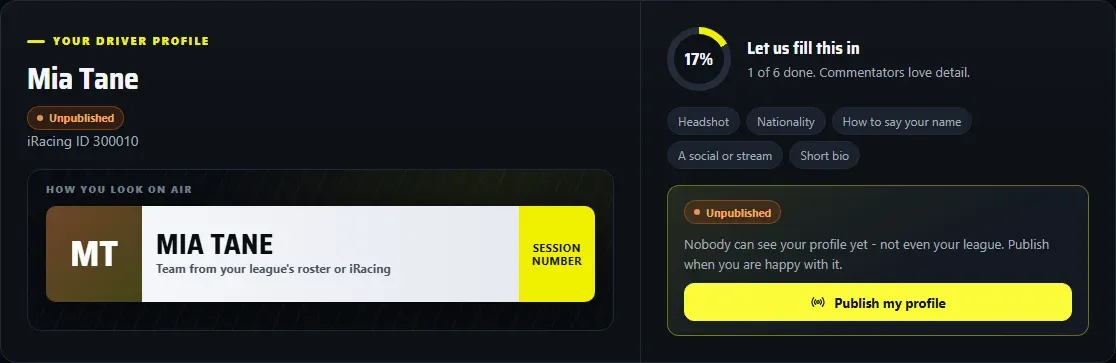
Your driver profile is free. Broadcasts and commentators use it: your name on air, how to say it, your nationality and your photo. It lives at my.edrbroadcast.com.
1. Make an account and claim your iRacing ID
- At my.edrbroadcast.com, choose New here? Create an account (or Sign in).
- Before you carry on asks you to confirm the licence agreement and your age, once. Choose Continue.
- Claim your iRacing customer ID: find it in iRacing under Account > My Account. Type it, press Look it up, and if it’s you, That is me - claim it.
Claims are first come, first served. If someone already has your ID, email apps@endurotechracing.com and EDR will sort it out.
2. How you look on air
Under Your driver profile:
- Display name: your name on screen. Short name replaces the automatic abbreviation where an overlay uses short names.
- Usual car number: for your profile only. On screen, your number always comes from the session.
- Nationality: two or three letters, for example NZ or NZL.
- How to say your name: commentators read this live, so spell it the way it sounds.
- Team: commentators see this; on screen your team comes from your league’s roster or iRacing.
- About you and your socials are optional extras for commentators. Socials take the handle only, no links.
3. Your headshot
On Photo, choose Choose a photo or drop it here. Head and shoulders, facing the camera, plain or blurred background, good light, at least 512 x 512 pixels: a phone photo is fine. Drag it into the dashed band, then Upload headshot. Each of your leagues approves it before it goes on air.
4. Save, then publish
Save profile saves your changes. It doesn’t make them visible: nothing you type is visible to anyone, not even your league, until you publish it.
- The first time you save an unpublished profile, the page asks Publish now? Choose Publish now, or Not yet to keep working on it.
- Until you publish, your profile shows an Unpublished badge. Publish my profile publishes it whenever you’re ready.
- Once published, edits go live as soon as you save them.
Who may see it
Under Who may see it, on Privacy & data:
| Choice | Who sees your profile |
|---|---|
| Any EDR broadcast | Any broadcast made with EDR Broadcast. |
| Only my leagues | Only broadcasts by leagues that roster you, and the broadcasters those leagues choose. |
| Nobody | No one. |
You can unpublish at any time, and Export my data or Delete my profile are on the same page.